 Sessions Pro for Cursor
Cursor is signed in to one account at a time. These guides cover every way to run your work, personal and client accounts side by side: signing out and in, a second computer user, the --user-data-dir method and its catches, and an app per account.
Run multiple Cursor accounts on one Mac
Why Cursor signs in one account at a time, and every way around it, with what each costs you.
Read the guide →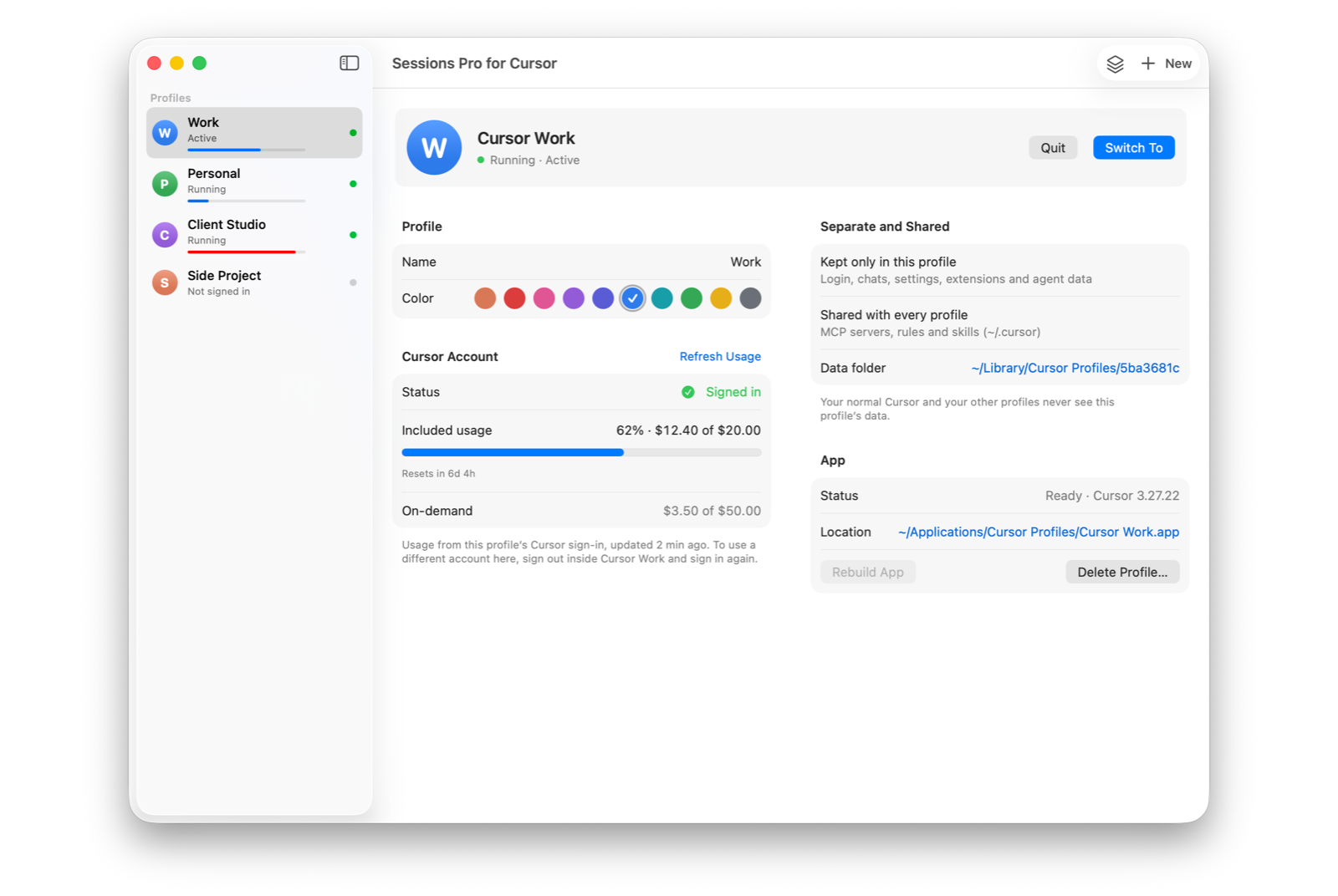
How to run two Cursor accounts
Every way to run two Cursor accounts at the same time, step by step, on Mac and Windows.
Read the guide → Work and personalCursor work and personal accounts at the same time
Keep your company seat and your own plan open together, and keep work on the work account.
Read the guide → CompareCursor account switcher: the options compared
Extensions, scripts and an app: what each Cursor account switcher does, and which keep you signed in.
Read the guide → UsageHow to check Cursor usage, across all your accounts
Where Cursor shows your usage and when it resets, and how to see every account at once.
Read the guide → How-toSwitch Cursor accounts without logging out
How switching accounts in Cursor works today, and how to keep every account signed in.
Read the guide → WindowsMultiple Cursor accounts on Windows
Two or more Cursor accounts on Windows 10 and 11, each in its own window with its own name.
Read the guide → Do it yourselfCursor --user-data-dir, and where it breaks
The free Terminal method, step by step, with the problems Cursor users keep reporting.
Read the guide →Free 1-hour preview, starting once an account signs in to Cursor. For macOS 14 or later, or 64-bit Windows 10 or 11, with Cursor installed. How Sessions Pro for Cursor works.
Sessions Pro for Cursor is made by LEX GLOBAL IT S.R.L. and is not affiliated with, endorsed by or sponsored by Anysphere, Inc., the maker of Cursor. It runs the official Cursor app with accounts you own, and Cursor's terms apply to each account. Cursor is a trademark of Anysphere, Inc.