 Sessions Pro for Cursor
Short answer: start Cursor with --user-data-dir pointing at an empty folder, sign in with your second account, and both stay signed in. It works, but the copies share an icon, show the update message constantly, break when duplicated, and leave some agent data in shared folders.
Free 1-hour preview, starting once an account signs in to Cursor. For macOS 14 or later, or 64-bit Windows 10 or 11, with Cursor installed.
What --user-data-dir does
Cursor is built on VS Code and accepts the same command-line options. --user-data-dir tells Cursor which folder to keep its data in: your sign-in, settings, chats and window state. The default is:
| What | Mac | Windows |
|---|---|---|
| Data folder | ~/Library/Application Support/Cursor | %APPDATA%\Cursor |
| Extensions | ~/.cursor/extensions | %USERPROFILE%\.cursor\extensions |
| Cursor itself | /Applications/Cursor.app | %LOCALAPPDATA%\Programs\cursor\Cursor.exe |
Point a second Cursor at an empty folder and it starts signed out, as if freshly installed. Sign in there with your other account, and both accounts stay signed in, each in its own folder.
Step by step on a Mac
In Terminal, with your normal Cursor already open:
open -n -a Cursor --args \
  --user-data-dir="$HOME/Library/Application Support/Cursor-Work" \
--extensions-dir="$HOME/.cursor-work/extensions"-nstarts a new copy instead of bringing the open one to the front.--extensions-dirkeeps that account's extensions apart; leave it out to share your normal extensions.- Keep the folder path short. Cursor opens a socket inside the data folder, macOS refuses socket paths longer than about 100 characters, and when it's too long Cursor quits silently right after it opens.
Step by step on Windows
In Command Prompt:
"%LOCALAPPDATA%\Programs\cursor\Cursor.exe" --user-data-dir="%APPDATA%\Cursor-Work" --extensions-dir="%USERPROFILE%\.cursor-work\extensions"In PowerShell:
& "$env:LOCALAPPDATA\Programs\cursor\Cursor.exe" --user-data-dir="$env:APPDATA\Cursor-Work" --extensions-dir="$env:USERPROFILE\.cursor-work\extensions"To avoid typing it every time, create a desktop shortcut with that command as its target.
Five ways it breaks
The method is old and well known; the problems are what people end up asking about on the Cursor forum.
1. You can't tell the copies apart
Every copy is the same app to the operating system. On a Mac they share one Dock icon and one name in ⌘-Tab. On Windows, in our test with Cursor 3.27, every window had the same title, and one forum post reports that a pinned taskbar shortcut for the second instance “launches Instance #1”.
“It feels kind of random as to which one pops up.”
From the thread “Can I run two instances of Cursor with two different accounts?”, forum.cursor.com/t/145882
2. The update message never goes away
Each copy checks for updates on its own, and the extra copies can't install them.
“The 'New Update Available' message is constantly on my screen.”
The same thread, forum.cursor.com/t/145882
Cursor's own --disable-updates option quiets it in that copy, as long as you remember to add it to every launch and keep updating your normal Cursor.
3. A duplicated app breaks when Cursor updates
To get a separate Dock icon on a Mac, some people duplicate Cursor.app and change its name and bundle identifier. That copy has to be signed again, and every Cursor update starts over.
The duplicate “broke after an update” and “has to be re-signed by hand after every update”.
A post from 17 October 2026, forum.cursor.com/t/58411
4. Not everything stays in your folder
Cursor's agent keeps some of its data outside the data folder. When we tested a copy started with its own --user-data-dir, signing in still created that account's agent store in the normal Cursor's folder, and per-project agent data went to the shared ~/.cursor folder in your home. A post in the same forum thread warns that ~/.cursor contexts “can leak into each other”.
5. You start it by hand, every time
The copy only exists while you launch it with the right options. Forget -n on a Mac and you just bring back the copy that's already open; on Windows, one post in the two-instances thread simply says: “I can not run them at the same time.”
What stays shared no matter what
Cursor finds ~/.cursor (%USERPROFILE%\.cursor on Windows) from your home folder, and no option moves it. Your MCP servers (mcp.json), rules and skills live there, so every copy sees the same ones. That's usually what you want, since your tools follow you into every account. Changing your home folder to split it would break Git, SSH and the built-in terminal, so don't.
The same idea, without the breakage.
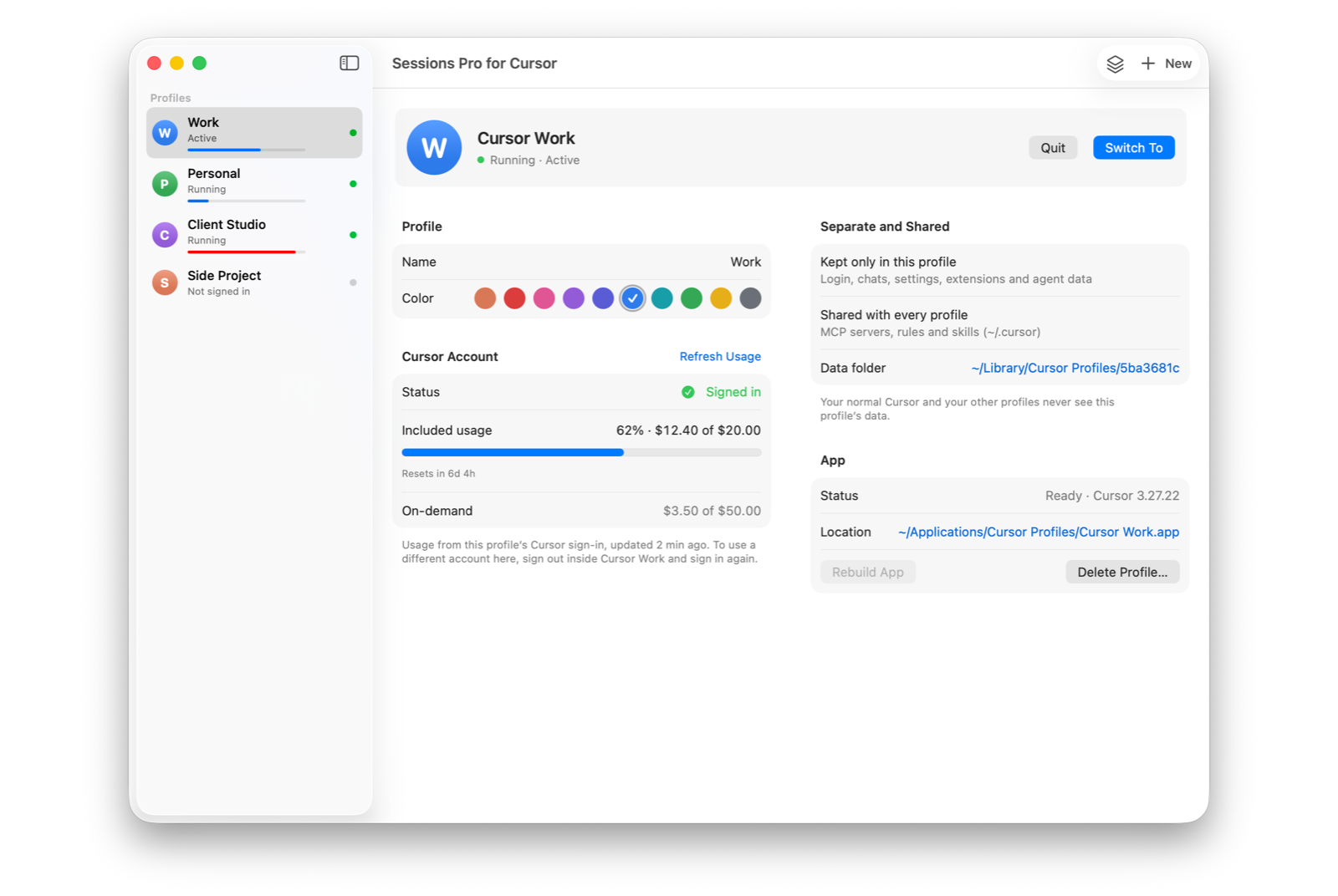
Sessions Pro for Cursor uses the same idea, a data folder per account, and handles everything above for you. Every row in the table below is a problem from the forum threads.
Each problem, and the fix
| Sessions Pro for Cursor | |
|---|---|
| Shared Dock icon, or identical windows on Windows | Each account is its own app with its own name in the Dock, Spotlight and ⌘-Tab, plus a lettered, coloured icon. On Windows, each window is titled with its account name, with a tray switcher. |
| “New Update Available” in every copy | Updates are switched off inside the account copies. Only your normal Cursor updates. |
| A duplicated app breaks after a Cursor update | The account copies are rebuilt automatically when your normal Cursor updates. |
| Agent data lands outside your folder | Agent stores and per-project agent data go to each account's own folder. |
| Started from Terminal every time | Open any account from the Dock, Spotlight or the tray, like any other app. |
 Sessions Pro for Cursor
Free 1-hour preview · 14-day refund · 2 computers, Mac or PC
Prefer a comparison of every method? See run multiple Cursor accounts on one Mac or on Windows.
FAQ
Where is Cursor's default user data folder?
On a Mac it's ~/Library/Application Support/Cursor; on Windows it's %APPDATA%\Cursor. Extensions are kept separately, in ~/.cursor/extensions on a Mac and %USERPROFILE%\.cursor\extensions on Windows.
Does --user-data-dir work with Cursor?
Yes. Cursor accepts VS Code's --user-data-dir and --extensions-dir options. A copy started with an empty data folder starts signed out and keeps its own sign-in.
Why does my second Cursor close right after it opens?
On a Mac, a long data folder path is a common cause: Cursor opens a socket inside it, and macOS refuses socket paths over about 100 characters. Use a shorter folder name.
Are MCP servers and rules separate per account?
No. They live in ~/.cursor in your home folder, which every copy of Cursor shares. Sign-in, chats, settings and extensions can be separate per account.
Is it allowed to have more than one Cursor account?
Cursor staff answered this on the Cursor forum in July 2026: “Having multiple accounts is totally fine. The only restriction is sharing a single account.” (forum.cursor.com) Use it for accounts you own, such as work, personal and client accounts. Every method on this page runs the official Cursor app, and Cursor's terms apply to each account.
Sessions Pro for Cursor is made by LEX GLOBAL IT S.R.L. and is not affiliated with, endorsed by or sponsored by Anysphere, Inc., the maker of Cursor. It runs the official Cursor app with accounts you own, and Cursor's terms apply to each account. Cursor is a trademark of Anysphere, Inc.
All your Cursor accounts. One computer.
Each account in its own app on a Mac, or its own window on Windows. $15 once, for 2 computers.