 Sessions Pro for Cursor
Short answer: to keep two Cursor accounts open at once on a Mac, each account needs its own copy of Cursor with its own data folder. You can start one from Terminal with --user-data-dir for free, or use an app that turns each account into its own Mac app with its own Dock icon and keeps it working when Cursor updates.
Free 1-hour preview, starting once an account signs in to Cursor. For macOS 14 or later, or 64-bit Windows 10 or 11, with Cursor installed.
Why Cursor only signs in one account
Cursor is built on VS Code, and like VS Code it keeps everything for the signed-in account in one data folder: ~/Library/Application Support/Cursor on a Mac. Your sign-in is stored there, next to your settings, chats and window state. One folder holds one sign-in, so signing in to another account replaces it. Switching between a work and a personal account means signing out and back in every time.
That's fine once a week. If you move between a company account and your own several times a day, or keep a separate account per client, it gets old fast, and you can never see two accounts at once.
Every way to run two Cursor accounts, compared
| Both open at once | Own Dock icon | Survives Cursor updates | No update nag | Agent data per account | Cost | |
|---|---|---|---|---|---|---|
| Sign out and back inBuilt into Cursor | ✕ | One app | ✓ | ✓ | One at a time | Free |
| Second macOS userFast User Switching | One at a time | Separate desktop | ✓ | ✓ | ✓ | Free |
Terminal: --user-data-dirA second copy started by hand | ✓ | Shared icon | ✓ | Shows in every copy | Partly shared | Free |
| Duplicated Cursor.appA renamed copy, by hand | ✓ | ✓ | Re-sign by hand after each update | Up to you | Partly shared | Free |
| MacDuplGeneral app duplicator | ✓ | ✓ | ✓ | Not stated* | Not stated* | $29 one-time, Mac only |
| Sessions Pro for CursorBuilt for Cursor | ✓ | ✓ | ✓ Rebuilt automatically | ✓ | ✓ | $15 one-time, Mac and Windows |
* From MacDupl's own website on 30 October 2026: it duplicates many Mac apps, gives each copy its own Dock identity and regenerates copies when the original app updates; it doesn't say how it handles Cursor's update message or agent data. We make Sessions Pro for Cursor.
Option 1: Sign out and back in
Free and built in: sign out of Cursor, then sign in with the other account in your browser. Nothing to install, but every switch is a round trip through the browser, and only one account is ever in front of you. How switching accounts in Cursor works.
Option 2: A second macOS user
Create another user in System Settings → Users & Groups and sign in to the other Cursor account there. Everything is separate, including your home folder. But you see one user's desktop at a time, and your files, apps, git and SSH setup don't come with you.
Option 3: A second copy from Terminal (free)
Cursor accepts VS Code's --user-data-dir option, which points a copy of the app at its own data folder. Give it its own extensions folder too, and start it next to your normal Cursor:
open -n -a Cursor --args \
  --user-data-dir="$HOME/Library/Application Support/Cursor-Work" \
  --extensions-dir="$HOME/.cursor-work/extensions"
Sign in to the second account in that window and it stays signed in. The catches, in Cursor users' own words:
- Both copies are the same app to macOS, so they share one Dock icon and ⌘-Tab can't tell them apart.
- The second copy shows Cursor's update message too. A post in a Cursor forum thread about running two instances on Windows reads: “The 'New Update Available' message is constantly on my screen” (forum.cursor.com/t/145882).
- You start it from Terminal or a script every time.
- Agent data doesn't all stay in the folder you chose. Where
--user-data-dirbreaks covers this and the fixes.
Option 4: Duplicate Cursor.app by hand
To get a second Dock icon, some people copy Cursor.app, rename it and change its bundle identifier. It works until Cursor updates. In a Cursor forum post from 17 October 2026, a user wrote that the duplicated app “broke after an update” and “has to be re-signed by hand after every update” (forum.cursor.com, 17 October 2026). Cursor ships often, so that's a chore you sign up for indefinitely.
Option 5: An app that makes each account its own Mac app
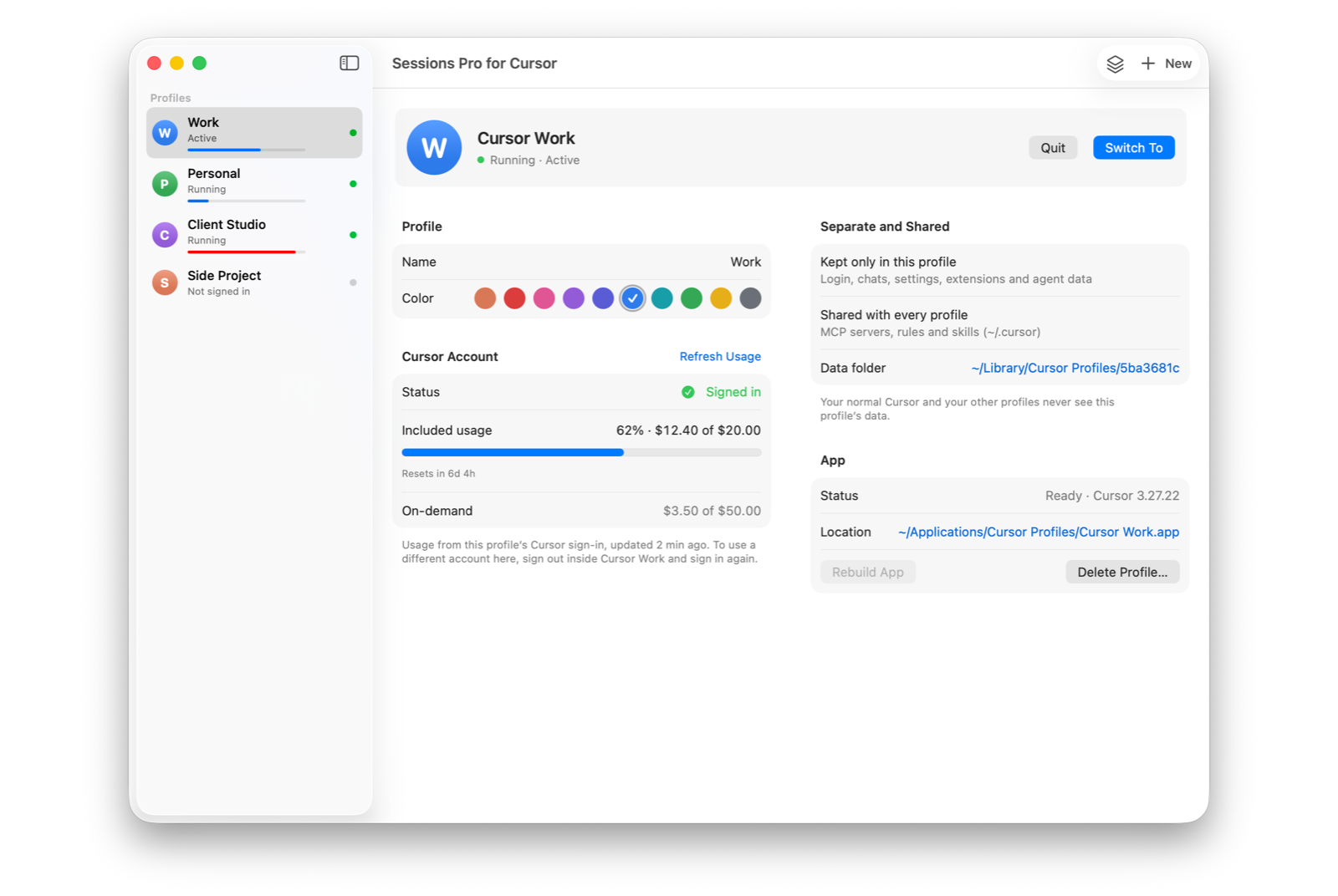
General duplicators such as MacDupl copy many apps, Cursor included. Sessions Pro for Cursor is built only for Cursor: each account becomes its own app, “Cursor Work” or “Cursor Personal”, with its own name and a lettered, coloured icon in the Dock, Spotlight and ⌘-Tab. It also handles the Cursor-specific parts: updates are switched off inside the account copies, the copies are rebuilt automatically when your normal Cursor updates, and agent stores and per-project agent data stay with each account.
Setting it up with Sessions Pro for Cursor
- Download and open the app. It works with the Cursor you already have in Applications.
- Add an account. Name it (Work, Personal, a client). It becomes its own app, for example “Cursor Work”, with its own lettered, coloured icon.
- Sign in once. Each copy starts signed out. Cursor opens its sign-in page in your browser, and the sign-in returns to the copy that started it.
- Keep them all open. Switch with ⌘-Tab, the Dock or Spotlight. Your MCP servers, rules and skills are shared, so your tools follow you into every account.
- Let Cursor update as usual.
Only your normal Cursor updates; the account copies are rebuilt from it automatically.
cursor://links keep opening your normal Cursor.
Can I have two Cursor accounts on one Mac?
Yes. Cursor staff answered this on the Cursor forum in July 2026: “Having multiple accounts is totally fine. The only restriction is sharing a single account.” (forum.cursor.com) So keep a company account and a personal one, or one account per client, and don't share a single account between people. Every method on this page runs the official Cursor app, and Cursor's terms apply to each account.
 Sessions Pro for Cursor
Free 1-hour preview · 14-day refund · 2 computers, Mac or PC
On Windows? See multiple Cursor accounts on Windows. MacDupl is a product of its owner.
FAQ
Can I be signed in to two Cursor accounts at once on a Mac?
Not in one copy of Cursor, because it keeps one sign-in in its data folder. You need a second copy with its own data folder: start one from Terminal with --user-data-dir, duplicate the app by hand, or use an app that sets the copies up for you.
Does Cursor have a built-in account switcher?
No. As of October 2026, Cursor is signed in to one account at a time, and changing accounts means signing out and signing in again.
Why does my second Cursor show the update message all the time?
Every copy of Cursor checks for updates on its own, so a second copy started by hand keeps asking. Sessions Pro for Cursor switches updates off inside the account copies and lets only your normal Cursor update.
Will I lose my chats when I switch accounts?
Not if each account has its own copy. Each account's chats stay in its own data folder, so they're there whenever you bring that account to the front.
Is it allowed to have more than one Cursor account?
Cursor staff answered this on the Cursor forum in July 2026: “Having multiple accounts is totally fine. The only restriction is sharing a single account.” (forum.cursor.com) Use it for accounts you own, such as work, personal and client accounts. Every method on this page runs the official Cursor app, and Cursor's terms apply to each account.
Sessions Pro for Cursor is made by LEX GLOBAL IT S.R.L. and is not affiliated with, endorsed by or sponsored by Anysphere, Inc., the maker of Cursor. It runs the official Cursor app with accounts you own, and Cursor's terms apply to each account. Cursor is a trademark of Anysphere, Inc.
All your Cursor accounts. One computer.
Each account in its own app on a Mac, or its own window on Windows. $15 once, for 2 computers.