 Sessions Pro for Cursor
Short answer: yes, you can use a work and a personal Cursor account at the same time. Cursor itself holds one sign-in per data folder, so each account needs its own copy of Cursor with its own folder. You can set that up by hand with --user-data-dir, or let Sessions Pro for Cursor give each account its own app on a Mac or its own window on Windows.
Free 1-hour preview, starting once an account signs in to Cursor. For macOS 14 or later, or 64-bit Windows 10 or 11, with Cursor installed.
Can you have a work and a personal Cursor account?
Yes. Cursor staff answered this on the Cursor forum in July 2026: “Having multiple accounts is totally fine. The only restriction is sharing a single account.” (forum.cursor.com) It's also a common setup. As one user put it: “I have a business account and a personal account. I want to easily run agents on both accounts.”
Cursor accounts are tied to a single email address, so the usual setup is your company email for the work account and your own email for the personal one.
Why you can't see both in one Cursor
Cursor staff have said that Cursor supports one signed-in account per installation. Signing in to your work account replaces your personal one, so moving between them means logging out and back in.
Cursor's Profiles don't solve this. They change your settings and extensions, not the account you're signed in to, which is why users keep asking Cursor to link accounts to Profiles.
Work and personal open at once, for free
- A second copy from Terminal. Start Cursor with
--user-data-dirpointing at a new folder and sign in to your work account there. Free, with rough edges. Step by step. - A second computer user. A separate macOS or Windows user for work. Fully separate, but one desktop at a time, and you set everything up again.
- Log out and in. Free and built in, but only one account at a time, and you do it at every switch. How it works.
Keep work on the work account
- Plan and usage. Each account has its own plan and usage, so work done on the company seat doesn't spend your personal plan.
- Chats, settings and extensions. With a separate copy per account, these stay in that account's own folder on your computer.
- MCP servers, rules and skills. The ones in
~/.cursorare shared by every copy. Keep work-only ones in the project's own.cursorfolder, so they stay with the work code. - Your git name and email. These come from git, not from your Cursor account, so a work account can still commit under your personal email. Point work folders at their own git settings by adding this to
~/.gitconfig:
[includeIf "gitdir:~/work/"]
  path = ~/.gitconfig-work
Your Cursor work and personal accounts, side by side.
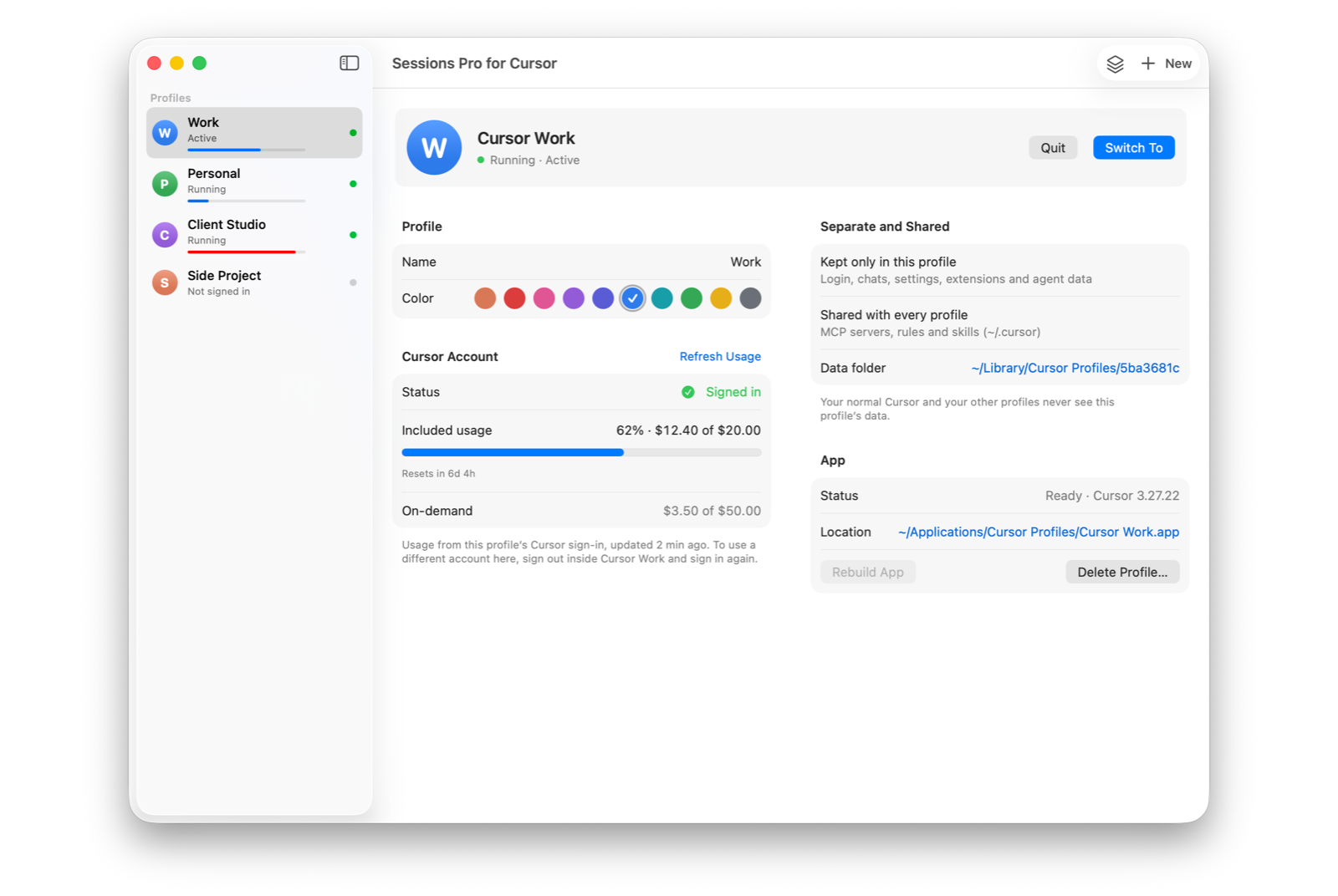
Sessions Pro for Cursor runs the official Cursor app once per account. On a Mac, Work and Personal are each their own app, with their own name and a lettered, coloured icon in the Dock, Spotlight and ⌘-Tab. On Windows, each opens in its own Cursor window, titled with its name, with a tray switcher.
Each account keeps its own sign-in, chats, settings, extensions and agent data, and on a Mac you can see each one's included usage and reset date at a glance. Your normal Cursor stays as it is. On a Mac you can also start a new account from your current Cursor: it copies your settings, keybindings, extensions, chats and recent projects, but never the login.
Work and personal in Cursor: the options compared
| Log out and in | --user-data-dir by hand | Sessions Pro for Cursor | |
|---|---|---|---|
| Both accounts open at once | ✕ | ✓ | ✓ |
| Tell work from personal at a glance | ✕ | Shared icon | ✓ Own icon or window title |
| Keeps working after Cursor updates | ✓ | Copies need care | ✓ |
| Separate chats, settings and extensions | ✕ | ✓ | ✓ |
| Cost | Free | Free | $15 one-time |
We make Sessions Pro for Cursor.
 Sessions Pro for Cursor
Free 1-hour preview · 14-day refund · 2 computers, Mac or PC
Just want the steps? See how to run two Cursor accounts.
FAQ
Can I have a work and a personal Cursor account?
Yes. Cursor staff on the Cursor forum: “Having multiple accounts is totally fine. The only restriction is sharing a single account.” (forum.cursor.com) Cursor accounts are tied to one email address, so use your company email for work and your own for personal.
Can I use my work and personal Cursor accounts at the same time?
Yes, if each account has its own copy of Cursor with its own data folder. One copy holds one sign-in. You can start a second copy with --user-data-dir, or use Sessions Pro for Cursor, which sets up a copy per account.
Will my work usage count against my personal Cursor plan?
No. Each account has its own plan and usage, so work done while signed in to your company account doesn't spend your personal plan.
Do Cursor Profiles separate work and personal accounts?
No. A Profile changes your settings and extensions, but you stay signed in to the same account. To use two accounts, each needs its own data folder.
Can my work and personal accounts share MCP servers and rules?
Yes. MCP servers, rules and skills in ~/.cursor are shared by every copy of Cursor, so your tools follow you. Keep anything that's work-only in the project's own .cursor folder.
Sessions Pro for Cursor is made by LEX GLOBAL IT S.R.L. and is not affiliated with, endorsed by or sponsored by Anysphere, Inc., the maker of Cursor. It runs the official Cursor app with accounts you own, and Cursor's terms apply to each account. Cursor is a trademark of Anysphere, Inc.
All your Cursor accounts. One computer.
Each account in its own app on a Mac, or its own window on Windows. $15 once, for 2 computers.