 Sessions Pro for Cursor
Short answer: Cursor's own MCP connection, a "url" entry like the one Atlassian's Add to Cursor button creates, keeps its login inside each Cursor's data folder, so accounts that each have their own folder already sign in separately. Servers run through npx mcp-remote keep their logins in one shared ~/.mcp-auth folder, so every account ends up with the same one. Sessions Pro for Cursor gives each account its own folder for those too, since Mac 1.0.1 and Windows 1.0.4.
Free 1-hour preview, starting once an account signs in to Cursor. For macOS 14 or later, or 64-bit Windows 10 or 11, with Cursor installed.
Where it started: two Atlassian accounts
On 12 November 2026 a customer wrote to us. Sessions Pro for Cursor was working well for them, but they had two Atlassian accounts, and keeping both signed in to Atlassian's MCP server, the one that gives Cursor's agent access to Jira and Confluence, had become a mess. They asked for separate MCP servers per Cursor account.
We looked into where Cursor keeps MCP logins, tested the common setups, and released the change that evening in Mac 1.0.1 and Windows 1.0.4. The same evening the customer wrote back that it works. This guide is everything we learned along the way, including how to do it without our app.
Where Cursor keeps your MCP logins
Every copy of Cursor reads the same list of MCP servers, ~/.cursor/mcp.json (%USERPROFILE%\.cursor\mcp.json on Windows). Where the login to a server is kept depends on how that server is connected:
| Connected through | In mcp.json | Login | Per account? |
|---|---|---|---|
| Cursor's own connection | "url": "https://mcp.atlassian.com/v2/mcp" | Kept in that Cursor's own data folder | Separate per account, when each account has its own data folder |
The mcp-remote helper | "command": "npx", "args": ["mcp-remote", …] | Kept in ~/.mcp-auth in your home folder | Shared by every account |
Atlassian's Add to Cursor button creates the first kind. The second is the older way: a small Node.js helper, mcp-remote, signs in and passes everything on to Cursor. Older setup guides, including some for Atlassian, still use it.
One more thing is shared by definition: anything written into mcp.json itself. If you connect with an API token in a header instead of signing in, every account uses that token.
What we tested
We used a small test MCP server whose sign-in page simply asks for a name, so no real Atlassian accounts were involved. The first test ran in two Cursor accounts, Work and Personal, reading the same server entry. For the mcp-remote tests we ran the helper on its own, the way Cursor starts it, once as Work and once as Personal.
| Setup | What happened |
|---|---|
| Cursor's own connection, two Cursor accounts on Windows | Work signed in as alice. Personal asked for its own sign-in and became bob. After restarting both, each sent its own saved login. |
mcp-remote, set up the usual way | Work signed in as alice. Personal then started as alice without asking. When Personal switched to bob, Work became bob too. |
mcp-remote with its own login folder per account | Work stayed alice and Personal stayed bob, on later runs too. |
The second row is how two accounts end up fighting over one login: with mcp-remote, there is only ever one, and whichever account signs in last decides it for all of them. The helper reads its login folder from the MCP_REMOTE_CONFIG_DIR setting, and we checked on both Mac and Windows that Cursor passes that setting on to the MCP servers it starts. That's what both fixes below rely on.
The fix in Sessions Pro for Cursor
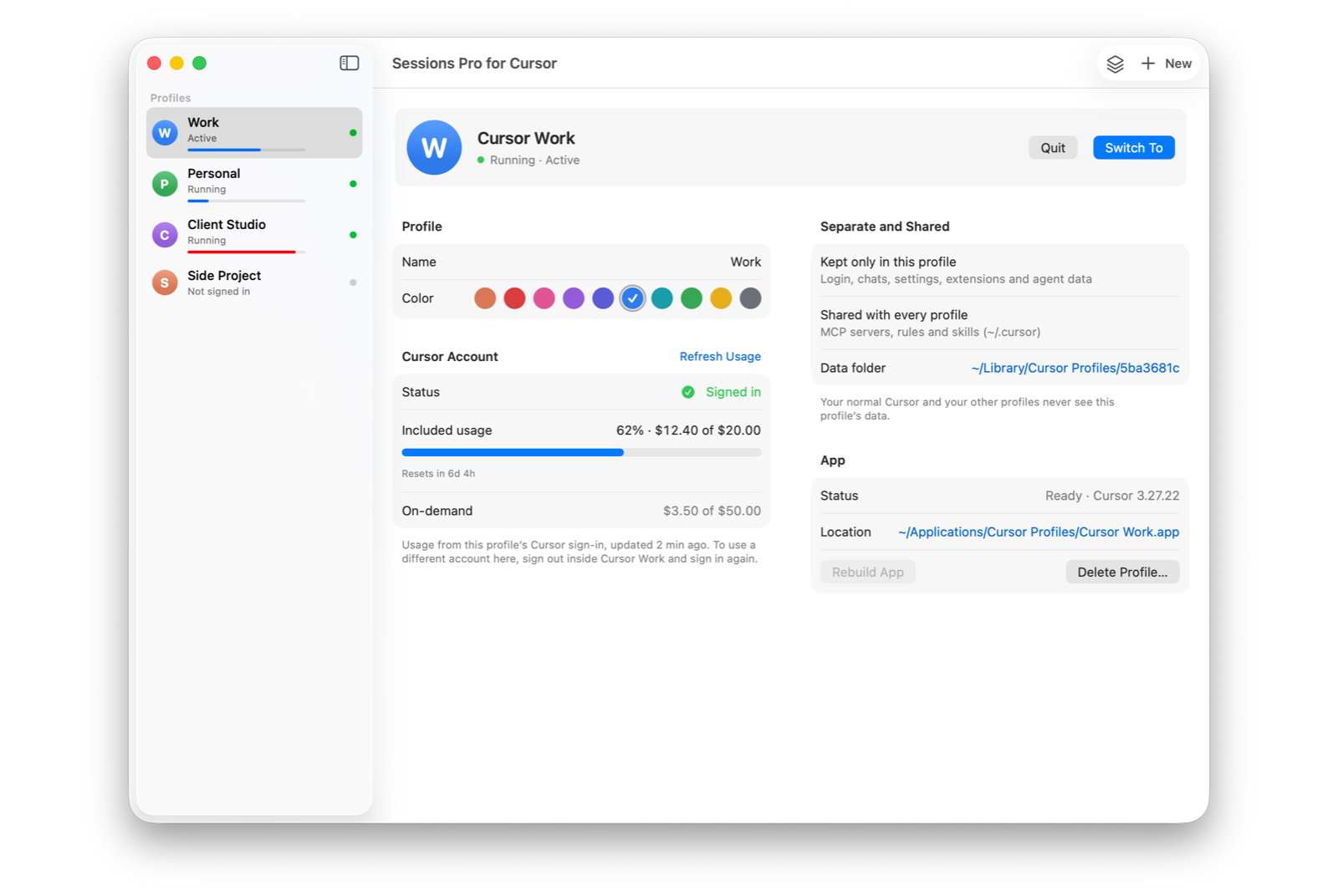
Sessions Pro for Cursor runs each Cursor account with its own data folder, so logins through Cursor's own connection were separate from the start. Since Mac 1.0.1 and Windows 1.0.4, each account also gets its own mcp-auth folder, and the app points mcp-remote at it.
You keep one Atlassian entry in mcp.json. The Work account signs in as your work Atlassian account, Personal as the other, and neither notices when the other signs in. Your normal Cursor keeps using ~/.mcp-auth as before.
Setting it up
- Update Sessions Pro for Cursor. On a Mac it offers the update itself, or choose Check for Updates… in its menu. On Windows, install 1.0.4 or later from this site; from then on it updates itself. Copies from the Microsoft Store update through the Store.
- Quit your Cursor account windows and open them again. They pick up the new folder when they start.
- Sign in to each MCP server once per account. Logins made before the update stay in the shared folder, so each account signs in again, this time to its own.
Sign in as the right Atlassian account
Separate login folders only help if each account signs in as the right person. Atlassian's sign-in opens in your browser and uses the Atlassian account the browser is already logged in to. Before you sign in from your second Cursor account, check which Atlassian account the page shows, and switch it there if it's the wrong one.
On Windows, the browser may offer to open Cursor once you've signed in. That opens your normal Cursor, which you can close: the login has already gone back to the account that asked for it.
Doing it yourself: one entry per Atlassian account
Without our app, you can still keep two mcp-remote logins apart by giving each entry its own login folder. Cursor passes an entry's env on to the helper and fills in ${userHome} for you; we checked both in Cursor for Mac on 13 November 2026.
{
  "mcpServers": {
    "atlassian-work": {
      "command": "npx",
      "args": ["-y", "mcp-remote", "https://mcp.atlassian.com/v2/mcp"],
      "env": { "MCP_REMOTE_CONFIG_DIR": "${userHome}/.mcp-auth-work" }
    },
    "atlassian-personal": {
      "command": "npx",
      "args": ["-y", "mcp-remote", "https://mcp.atlassian.com/v2/mcp"],
      "env": { "MCP_REMOTE_CONFIG_DIR": "${userHome}/.mcp-auth-personal" }
    }
  }
}
Sign in to each entry as its own Atlassian account. This works in a single Cursor too, with one catch: it separates entries, not Cursor accounts. Every account sees both entries, so the agent gets two sets of Jira and Confluence tools, and you have to make sure it uses the right one.
If you use Sessions Pro for Cursor, leave MCP_REMOTE_CONFIG_DIR out of your entries. A folder set in the entry can override the per-account folder the app sets, and then every account would share it again.
Not just Atlassian
The same applies to any MCP server that signs in through npx mcp-remote: Linear, Notion, Sentry or any other, if that's how you connected them. With Sessions Pro for Cursor, each Cursor account gets its own login to every one of them, with no extra setup per server.
Each problem, and the fix
| Sessions Pro for Cursor | |
|---|---|
One mcp-remote login shared by every Cursor account | Each account gets its own login folder, set automatically. |
| Two entries, two sets of Jira tools in every account | One entry. Each account signs in as its own Atlassian account. |
Editing mcp.json by hand for every server | Nothing to edit. Your MCP list stays shared; the logins don't. |
| Logins through Cursor's own connection | Already separate, because each account has its own data folder. |
 Sessions Pro for Cursor
Free 1-hour preview · 14-day refund · 2 computers, Mac or PC
Keeping work and personal apart in Cursor? See Cursor work and personal accounts at the same time, or the free --user-data-dir method.
FAQ
Can I use two Atlassian accounts with the Atlassian MCP server in Cursor?
Yes. Give each Cursor account its own data folder and each account keeps its own sign-in to Cursor's own MCP connection. If Atlassian runs through npx mcp-remote, also give each account, or each entry, its own mcp-remote login folder. Sessions Pro for Cursor does both for you.
Why does Cursor keep asking me to log in to the Atlassian MCP server again?
Often the login simply expired: Cursor renews it when the server hands out a refresh token, and otherwise you sign in again. With npx mcp-remote and more than one Cursor account, there's a second cause: every account shares one login in ~/.mcp-auth, so when one account signs in as someone else, the others change with it.
How do I log out of an MCP server connected with mcp-remote?
Delete its login folder and restart Cursor. mcp-remote keeps every login in ~/.mcp-auth (%USERPROFILE%\.mcp-auth on Windows), or in the folder MCP_REMOTE_CONFIG_DIR points to. With Sessions Pro for Cursor, each account's logins are in the mcp-auth folder inside that account's own data folder.
Are MCP servers separate per Cursor account?
The list isn't: every copy of Cursor reads the same ~/.cursor/mcp.json, so your tools follow you into every account. The sign-ins can be separate. For a server only one account should see, put it in a project's own .cursor/mcp.json.
Which Atlassian MCP address should I use in Cursor?
Atlassian's setup guide gives https://mcp.atlassian.com/v2/mcp and an Add to Cursor button. Added as a "url" entry or with the button, it uses Cursor's own MCP connection, which keeps its sign-in inside each Cursor's data folder.
Is it allowed to have more than one Cursor account?
Cursor staff answered this on the Cursor forum in July 2026: “Having multiple accounts is totally fine. The only restriction is sharing a single account.” (forum.cursor.com) Use it for accounts you own, such as work, personal and client accounts.
Sessions Pro for Cursor is made by LEX GLOBAL IT S.R.L. and is not affiliated with, endorsed by or sponsored by Anysphere, Inc., the maker of Cursor, or by Atlassian. It runs the official Cursor app with accounts you own, and Cursor's terms apply to each account. Cursor is a trademark of Anysphere, Inc. Atlassian, Jira and Confluence are trademarks of Atlassian.
All your Cursor accounts. One computer.
Each account in its own app on a Mac, or its own window on Windows. $15 once, for 2 computers.